Constantcontact
Constantcontact is an online email marketing service that provides customers with unique experiences with online marketing services. Constantcontact provides everything you need to build deeper relationships with your potential customers. From email to e-commerce, SMS to social media, constantcontact provides tools to help small and medium businesses grow.
Steps to integrate Constantcontact with the Forms widget:

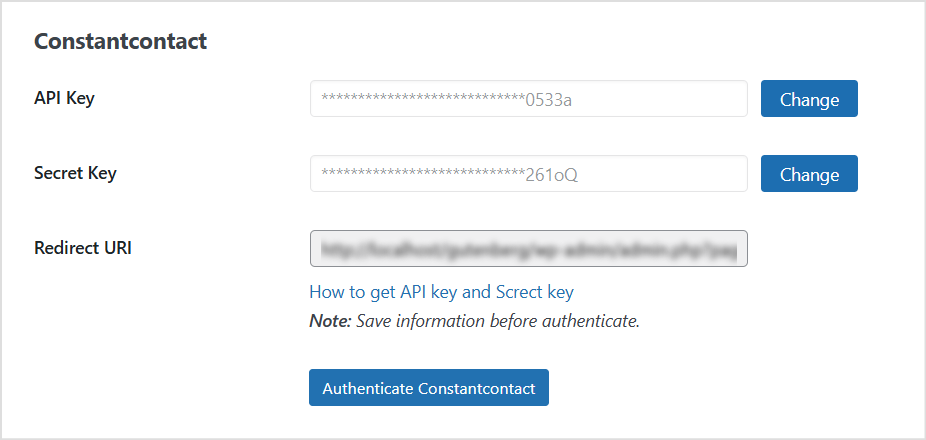
Step 1: Visit Constantcontact to create new app and get API Key and Secret Key.
- Fill in the key information at Dashboard -> WP Form Builder -> Settings -> Integrations -> Constantcontact. Save key information before performing authentication.
- Click “Authenticate Constantcontact” and proceed with the authentication.
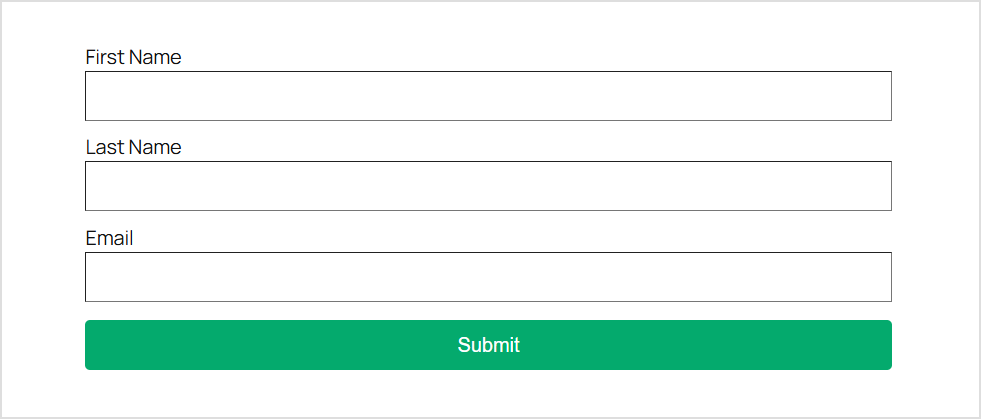
Step 2: Create forms with full information.
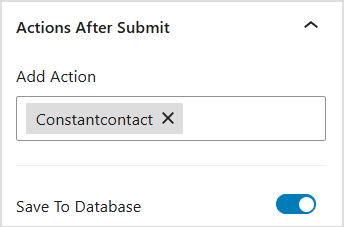
Step 3: Select the Actions After Submit section, add Constantcontact to the actions select box.
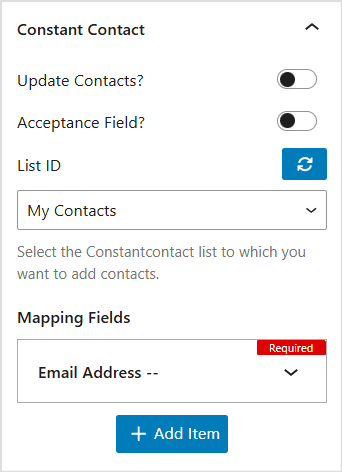
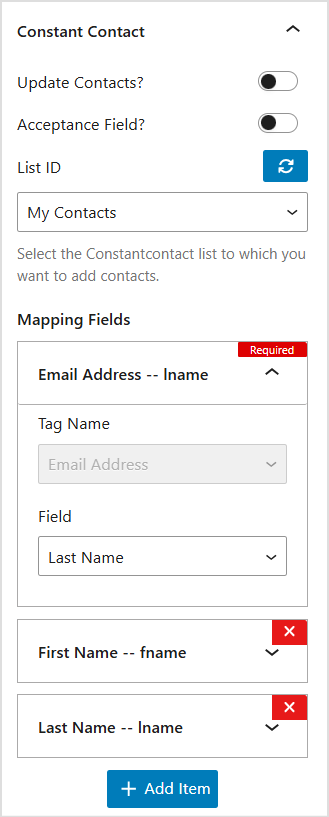
Step 4: Select the Constantcontact section and perform the integration.
- Update Contacts: When you activate this option, the information of customers who registered with the same email will be overwritten, the last subscriber information will be updated.
- Acceptance Field: This option allows the customer to make a choice with a checkbox data type, agree to the terms and receive emails or not. If the customer agrees, the information will be saved to Constantcontact. If the customer does not agree, the information will not be saved. With this option, you need to create a field with the type Acceptance, then enter the name of the newly created field in the Acceptance Field Name field.
- List ID: Select a list to categorize specific contacts.
- Mapping Fields: A list of fields to be mapped to in the next step.
Step 5: Perform the mapping:
- Tag Name: Get custom fields values by Constantcontact.
- Field: Get the value as the field name of the forms
Step 6: Complete all the mapping fields you need, save the settings and test the forms in action.